How to Convert JPG to PDF for Free (No Sign-Up Needed)
Learn how to convert JPG to PDF for free in your browser. Combine up to 100 photos into one PDF, pick a page size and keep full image quality.
PDFTools 6 min read
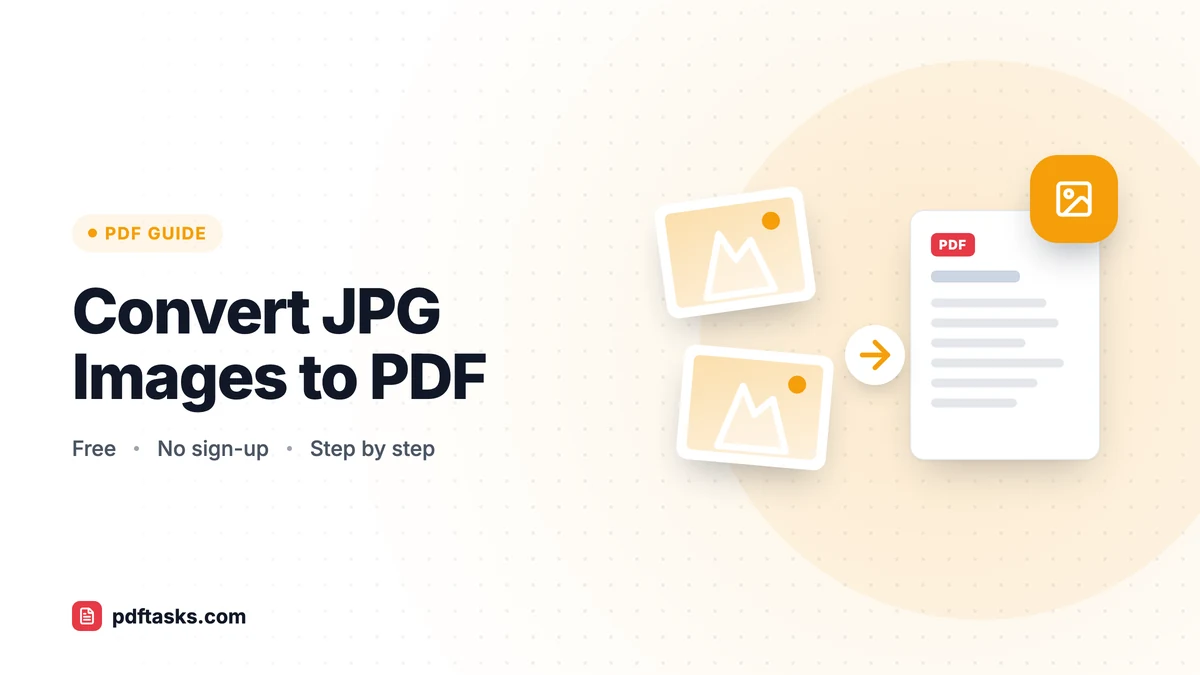
To convert JPG to PDF, open a free JPG to PDF converter, add your images, drag them into the right order, choose a page size, and download a single PDF. With PDFTools the whole conversion runs in your browser, so your photos are never uploaded and you don't need an account.
Below: the exact steps, which page size to choose, and how built-in tools on Windows, Mac and iPhone compare.
Why convert JPG images to PDF?
Plenty of everyday paperwork starts life as a photo. You snap a signed form, a receipt, a page from a notebook or an ID card, and then a portal tells you it only accepts PDF. Turning those images into a PDF solves a few problems at once:
- One file instead of many. Ten receipts become one attachment for your expense report.
- Predictable order. Pages stay in the sequence you set, unlike a batch of loose image attachments.
- Accepted almost everywhere. Government sites, schools, landlords and HR systems routinely ask for PDF uploads.
- Print-friendly layout. Placing images on A4 or Letter pages means they print at a sensible size instead of spilling over the edge.
How to convert JPG to PDF with PDFTools
The JPG to PDF converter works on any modern browser, on desktop or mobile.
- Add your images. Open the tool and select or drag in your JPG files. You can add up to 100 images in one go.
- Arrange the order. Drag the thumbnails so the pages appear in the sequence you want. The first image becomes page 1.
- Choose a page size. Pick Fit image to create pages that match each photo exactly, or A4 / Letter to place each image on standard paper.
- Set orientation and margins. If you chose A4 or Letter, select portrait or landscape and decide whether you want margins around each image.
- Convert and download. Create the PDF and save it. Because the conversion happens on your device, there's no upload wait and nothing is stored on a server.
Which page size should you pick?
| Option | What it does | Best for |
|---|---|---|
| Fit image | Each page is exactly the size of its photo | On-screen viewing, sharing by email or chat |
| A4 | Places images on A4 paper (common outside North America) | Printing, official submissions in Europe and most of the world |
| Letter | Places images on US Letter paper | Printing and submissions in the US and Canada |
| Margins on | Adds white space around each image | Documents that will be printed or bound |
| Landscape | Rotates the paper sideways | Wide photos, spreadsheets, slides |
If you're unsure, use Fit image for anything that stays digital and A4 or Letter for anything that might get printed.
Does converting JPG to PDF reduce image quality?
Not with this tool. The JPG data is embedded in the PDF as it is, without being recompressed, so your photos keep their original sharpness. The flip side is that a PDF made from twenty full-resolution phone photos can be large. If a portal rejects it for size, run the finished file through Compress PDF to shrink the images to a more manageable level. Our guide on compressing a PDF without losing quality explains which level to choose.
Other ways to turn images into a PDF
You don't always need a website. Most operating systems include a way to save images as a PDF, though each has trade-offs.
Windows: Photos and Microsoft Print to PDF
Select your images in File Explorer, right-click and choose Print, then pick Microsoft Print to PDF as the printer. It works offline, but you have limited control over page order and layout, and images can get cropped depending on the print settings you choose.
Mac: Preview
Open all the images in Preview, arrange them in the sidebar, select them, and use File > Print > Save as PDF (or Export as PDF). It's reliable and free, but only available on macOS.
iPhone and iPad: Files or Photos
On iOS you can select images in the Files app and use Create PDF from the quick actions menu, or use the print preview trick in the Photos share sheet. It's handy for a couple of pictures but fiddly for reordering a long set.
Comparison at a glance
| Method | Works on | Reorder pages | Page size control | Uploads files? |
|---|---|---|---|---|
| PDFTools JPG to PDF | Any browser | Yes, drag and drop | Fit, A4, Letter, margins | No |
| Windows Print to PDF | Windows | Limited | Via print settings | No |
| macOS Preview | Mac | Yes | Via print settings | No |
| iOS Files / Photos | iPhone, iPad | Limited | Minimal | No |
| Many online converters | Any browser | Varies | Varies | Often yes |
A browser-based tool behaves the same on every device, and with PDFTools your files still stay local.
Tips for a cleaner PDF from photos
A few small habits make a big difference to how professional the result looks.
- Crop before converting. Trim each photo to the edges of the paper. A PDF made of tightly cropped images looks much more like a real scan than one with a kitchen table in the background.
- Shoot straight down in good light. Hold the phone parallel to the page and avoid shadows from your hand or the phone itself.
- Rotate photos first. Make sure every image is upright before you add it. If a page still ends up sideways, fix it afterwards with Rotate PDF.
- Scanning paper right now? If you're photographing pages specifically to make a PDF, Scan to PDF lets you capture pages with your camera and apply a document filter that makes text stand out.
Common mistakes to avoid
Mixing file types. JPG to PDF is for JPG images. If some of your files are PNGs, convert them with PNG to PDF, then combine the two PDFs with Merge PDF.
Forgetting the order. It's easy to add photos in whatever order your gallery shows them. Check the sequence before converting; reordering afterwards is possible but adds a step.
Picking the wrong paper size for printing. A Fit image page from a 12-megapixel photo may print at an odd size. If the recipient will print it, choose A4 or Letter.
Sending sensitive images to unknown sites. Photos of IDs, bank cards or medical forms deserve care. Because PDFTools converts in the browser, the images stay on your device. If you need to send the PDF, consider adding a password with Protect PDF.
When you need more than a conversion
Once your images are a PDF, the rest of the document workflow opens up. You can merge it with other PDFs, add a signature with Sign PDF, or rearrange pages later. For a deeper look at photographing paper, see how to scan documents to PDF with your phone. And if you ever need to go the other way, our guide to converting PDF to JPG covers that.
When you're ready, turn your JPG photos into a PDF in a few clicks.
Frequently asked questions
Can I combine multiple JPG files into one PDF?
Yes. Add up to 100 images and each one is placed on its own page in a single PDF, in the order you arrange them.
Is it free to convert JPG to PDF on PDFTools?
Yes. The tool is free to use and doesn't require an account or sign-up.
Are my photos uploaded to a server?
No. JPG to PDF runs entirely in your browser, so the images never leave your device.
Will the PDF be lower quality than my photos?
No. The JPG data is embedded without recompression. If the PDF is too large, you can shrink it afterwards with Compress PDF.
Can I convert JPG to PDF on my phone?
Yes. The converter works in mobile browsers on iPhone and Android, and you can pick images directly from your photo library.
How do I convert PNG images to PDF?
Use the PNG to PDF tool for PNG files. If you have a mix of PNG and JPG, convert each set separately and combine the results with Merge PDF.