How to Convert PDF to JPG Images (Free, Any Device)
Convert PDF to JPG for free in your browser. Pick 72, 150 or 300 DPI, turn every page into an image and download them in a ZIP without uploading files.
PDFTools 6 min read
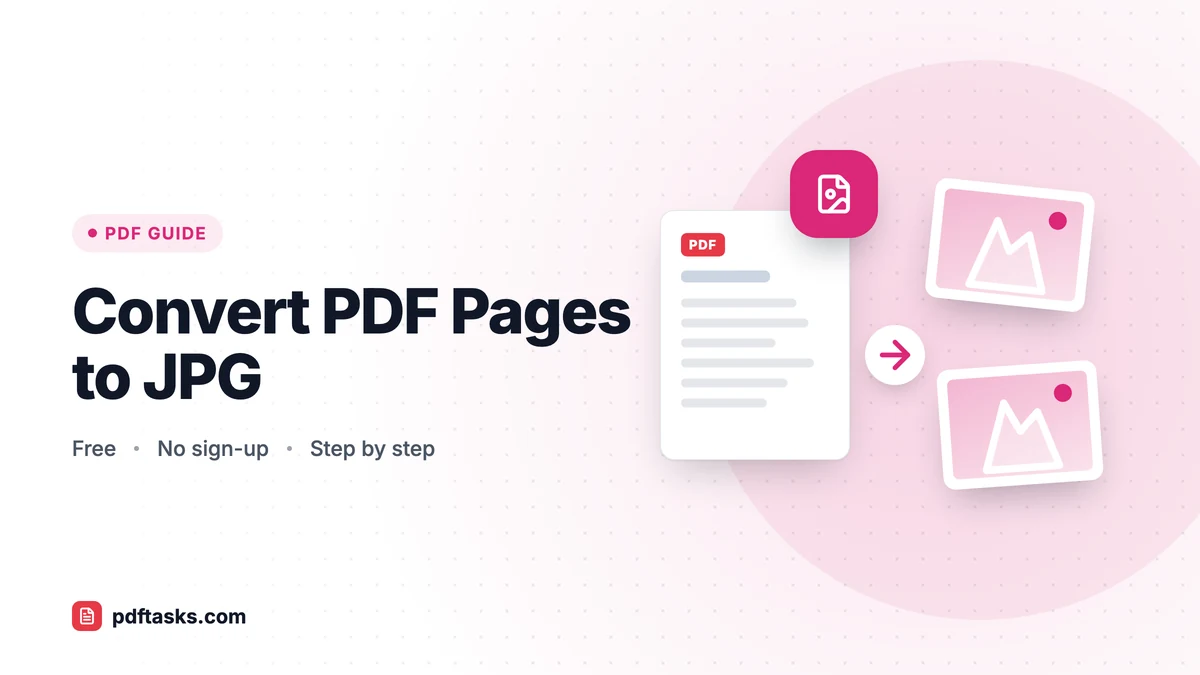
To convert a PDF to JPG, open a PDF to JPG converter, select your file, choose a resolution (150 DPI suits most screens, 300 DPI suits print), and download the images. PDFTools renders each page in your browser, so the PDF is never uploaded; one page downloads as a JPG and several pages arrive together in a ZIP.
Below you'll find the step-by-step process, how to pick the right DPI, when PNG is the better choice, and how built-in apps on Mac and Windows compare.
When you need a PDF page as an image
PDFs are great for documents, but some places simply want a picture. Common reasons to turn PDF pages into JPG images include:
- Social media posts. Instagram, LinkedIn image posts and most social platforms accept images, not PDFs.
- Presentations. Dropping a page into PowerPoint, Keynote or Google Slides is easiest as an image.
- Chat apps. A JPG shows inline in a message; a PDF often shows as a file icon the recipient has to open.
- Website previews. A thumbnail of a brochure, menu or report helps visitors know what they're about to download.
- Image-only upload forms. Some portals accept photos of documents but not PDF files.
How to convert PDF to JPG with PDFTools
The PDF to JPG converter works on desktop and mobile browsers with no sign-up.
- Select your PDF. Open the tool and choose or drag in the PDF you want to convert.
- Choose a resolution. Pick 72, 150 or 300 DPI depending on where the images will be used (see the table below).
- Convert the pages. Each page is rendered into a JPG image right in your browser using pdf.js.
- Download the result. A single-page PDF downloads as one JPG. A multi-page PDF downloads as a ZIP containing one JPG per page.
- Unzip if needed. On Windows, macOS and most phones, opening the ZIP file is enough to reach the images.
Which DPI should you choose?
DPI (dots per inch) controls how many pixels each page gets. More pixels mean sharper images and bigger files.
| Resolution | Image quality | Typical file size | Best for |
|---|---|---|---|
| 72 DPI | Basic | Smallest | Thumbnails, quick previews, web listings |
| 150 DPI | Clear on screens | Medium | Social posts, slides, chat apps, email |
| 300 DPI | Sharp, zoomable | Largest | Printing, detailed diagrams, small text |
If you're not sure, start with 150 DPI. Move up to 300 DPI only when you need to print the image or zoom into fine detail, because the files grow considerably.
JPG or PNG: which format is better?
Both are image formats, but they behave differently.
JPG uses lossy compression. It keeps files small and handles photos and colorful designs well, but can show slight artifacts around sharp edges such as small text.
PNG is lossless. Text, line art, charts and diagrams stay crisp, at the cost of larger files.
As a rule of thumb, choose JPG for flyers, photo-heavy pages and social media. Choose PDF to PNG for text-heavy pages, screenshots of forms or technical drawings where every line needs to stay sharp.
Converting just one page
The converter processes the whole document. If you only need page 7 of a 40-page report, use Extract Pages to pull that page into its own PDF first, then convert the single-page file. You'll get one JPG instead of a ZIP full of images you don't need. Our guide on how to split a PDF covers other ways to break a document apart.
Other ways to convert PDF pages to images
Mac: Preview
Open the PDF in Preview, go to the page you want, and choose File > Export, then pick JPEG as the format. It's free and built in, but it exports one page at a time, which gets tedious for long documents.
Windows: screenshots
Windows doesn't include a dedicated PDF-to-image exporter. Many people open the PDF in a browser and use the Snipping Tool. That works in a pinch, but the image resolution is limited to what's on screen and you have to capture each page manually.
Desktop PDF editors
Paid editors such as Adobe Acrobat can export pages as images with detailed settings. They're useful if you already pay for one, but it's a lot of software for an occasional conversion.
Comparison
| Method | All pages at once | Choose resolution | Cost | Uploads your file? |
|---|---|---|---|---|
| PDFTools PDF to JPG | Yes (ZIP) | 72 / 150 / 300 DPI | Free | No |
| macOS Preview | One page at a time | Yes | Free (Mac only) | No |
| Screenshot | No | Screen resolution only | Free | No |
| Paid desktop editor | Yes | Yes | Subscription | No |
| Many online converters | Usually | Varies | Free or paid | Often yes |
Tips and common mistakes
Choosing 300 DPI for everything. High resolution is wonderful for print and wasteful for a WhatsApp message. Match the DPI to the destination.
Converting huge documents on a phone. There's no server page limit because the work happens on your device, but a long document at 300 DPI needs plenty of memory. On a phone, split large files first or use a lower DPI.
Fixing orientation too late. If some pages are sideways, the images will be too. Straighten them first with Rotate PDF or Organize PDF, then convert.
Forgetting about privacy. Contracts, bank statements and medical letters often get converted so they can be sent through chat. Since PDFTools renders pages locally, the PDF never leaves your device, which is one less copy of your data floating around.
Expecting editable text. A JPG is a picture of the page. You can't select or edit the text in it. If you need to change content, edit the PDF itself with Edit PDF before converting.
Going the other way
Need to turn photos back into a document? Read how to convert JPG to PDF, which explains page sizes and margins for image-based PDFs. If the images are for a printed handout, you might also want to add page numbers to the PDF before exporting.
Ready to go? Convert your PDF pages to JPG images in your browser.
Frequently asked questions
How do I convert a PDF to JPG for free?
Open the PDFTools PDF to JPG converter, select your PDF, choose a DPI, and download the images. It's free and doesn't require an account.
Is my PDF uploaded when I convert it to JPG?
No. Pages are rendered in your browser with pdf.js, and the file is never sent to a server.
Why did I get a ZIP file instead of images?
When a PDF has more than one page, all the JPGs are bundled into one ZIP so you can download them in a single click. Open the ZIP to access each image.
What DPI is best for converting PDF to JPG?
Use 150 DPI for most on-screen uses, 300 DPI for printing or zooming in, and 72 DPI for small previews.
Can I convert only one page of a PDF to JPG?
Yes. Extract the page you need with Extract Pages first, then convert that one-page PDF to get a single JPG.
Is there a page limit?
There's no server-imposed limit. Very long documents at high DPI are limited only by your device's available memory.