How to Compress a PDF File Without Losing Quality
Learn how to compress a PDF without losing quality. Pick the right compression level, keep text sharp, and shrink files enough for email or uploads.
PDFTools 7 min read
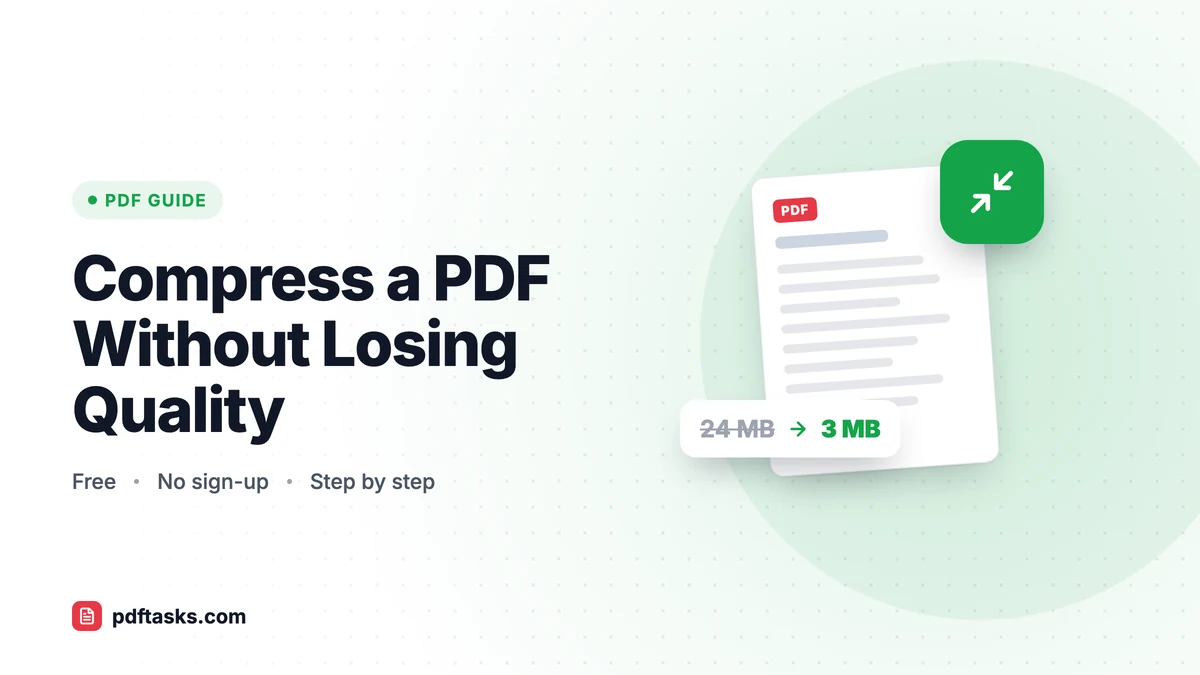
To compress a PDF without losing visible quality, reduce the size of its images while leaving text and vector graphics untouched. Upload the file to a PDF compressor, choose a moderate level such as "recommended" (or "low" for print), and download the smaller copy. Text stays crisp because only raster images are recompressed.
That's the short answer. The rest of this guide explains why PDFs get bloated, which compression level fits which job, and how to avoid the mistakes that make a document look fuzzy.
Why PDF files get so large
A PDF is a container. It can hold text, fonts, vector drawings, and images, and each of those adds weight in a different way. In most oversized files, the culprit is images:
- Scanned pages saved at high resolution, where every page is effectively a large photo.
- Photos dropped into a report straight from a phone or camera, often several megabytes each.
- Slide decks exported to PDF with full-size pictures, even when they appear as small thumbnails on the slide.
Text, by comparison, is tiny. A 100-page contract that is pure text can be smaller than a single high-resolution photo. That's why compression tools focus on images: that's where the savings are.
What "lossless" really means for PDFs
You'll see "compress without losing quality" everywhere, so it helps to be precise. Text and vector shapes (lines, charts, logos drawn as vectors) can stay exactly as they are. Images are different: shrinking them meaningfully means lowering resolution or using stronger JPEG compression, which is technically lossy.
The goal, then, is no visible loss at the size you'll actually view or print the document. A photo that's 4,000 pixels wide but displayed at the width of a phone screen can be downsampled a lot before anyone notices.
How to compress a PDF with PDFTools
The PDFTools PDF compressor uses Ghostscript to recompress and downsample images and clean up redundant data. It's free and doesn't require an account.
- Open the tool. Go to Compress PDF in any modern browser, on desktop or mobile.
- Upload your file. Drag the PDF onto the page or click to choose it. Files up to 100 MB and 500 pages are supported, and the upload is sent over HTTPS.
- Pick a compression level. Choose low, recommended, or extreme depending on how the document will be used (see the table below).
- Compress and download. The file is processed on the server. Download it once it's ready; download links expire after 30 minutes.
- Delete it if you like. You can remove your file immediately after downloading. Otherwise it's deleted automatically within an hour.
Which compression level should you choose?
Each level makes a different trade-off between file size and image detail. Here's how to decide:
| Level | What it does | Best for | Watch out for |
|---|---|---|---|
| Low | Keeps images close to the original | Documents you'll print, detailed photos, portfolios | Smaller savings |
| Recommended | Balanced image downsampling | Email attachments, sharing and reading on screen | Fine photo detail may soften slightly when zoomed in |
| Extreme | Aggressively lowers image resolution | Strict upload limits where the file only needs to be readable | Images look noticeably softer |
Start with recommended. If the result looks good on screen, you're done. If the file is going to a printer or contains photos people will zoom into, try low. Reach for extreme only when a portal rejects anything over a hard limit and readability is all that matters.
A good habit: keep the original. If one level isn't right, re-run the original rather than compressing an already compressed copy, which stacks quality loss.
Why didn't my PDF get smaller?
Sometimes you compress a file and it barely changes. That's normal in two situations:
- The PDF is mostly text. There are few or no images to shrink, so there's little to remove.
- The images were already optimized. If the PDF was exported with compression turned on, or has already been through a compressor, most of the easy savings are gone.
In these cases, other approaches work better. If the document has pages nobody needs, remove pages you don't need before sharing. If it's one huge file that a portal won't accept, split the PDF into smaller parts and upload them separately. Our guide on how to split a PDF covers the options.
Other ways to reduce PDF file size
PDFTools isn't the only option. Depending on your setup, one of these may suit you better.
macOS Preview
Preview can export with a Reduce File Size Quartz filter (File > Export, then choose the filter). It's quick and built in, but the default filter is aggressive and gives you little control, so images can come out noticeably blurry.
Microsoft Word and Office "Save as PDF"
If you're creating the PDF yourself, prevention beats cure. In Word, when you save as PDF you can choose Minimum size (publishing online) instead of standard. Office apps also have a Compress Pictures option that lowers image resolution before export.
Desktop PDF editors
Full PDF editors usually include an "optimize" or "reduce size" feature with granular settings for image resolution, fonts, and metadata. They're powerful but often paid, and more than most people need for a one-off email attachment.
Comparison at a glance
| Method | Cost | Control | Works on any OS |
|---|---|---|---|
| PDFTools Compress PDF | Free | Three levels | Yes, in the browser |
| macOS Preview | Built in | Very limited | Mac only |
| Word "Minimum size" | Included with Office | Limited, only for new PDFs | Where Office is installed |
| Desktop PDF editor | Often paid | Detailed | Depends on the app |
Tips to keep quality high while shrinking files
- Fix the source if you can. Resize photos before inserting them into a document. A picture shown at 8 cm wide doesn't need to be 6,000 pixels across.
- Scan at a sensible resolution. For ordinary text documents, scanning in grayscale at a moderate resolution keeps files manageable. Full-color, very high-resolution scans of plain text pages produce enormous files for no benefit.
- Compress last. Do your merging, page deletion, and reordering first, then compress the final file once. If you're combining files, see how to merge PDF files.
- Check the result at real size. Open the compressed file and view it at the zoom level your reader will use. Zooming to 400% will always reveal some softening in images.
- Don't compress archival masters. If a document is the official record, keep an uncompressed original and share the compressed copy.
Common mistakes to avoid
Using extreme for everything. The smallest file isn't always the best file. Photos, diagrams with fine detail, and anything headed to a printer deserve a gentler setting.
Compressing repeatedly. Each pass with image recompression can degrade images further. Go back to the original instead.
Expecting miracles from text-only files. If there are no images, compression won't make much difference. Splitting or trimming pages is the better route.
Forgetting about privacy. Compression happens on a server, so the file is uploaded. PDFTools sends it over HTTPS and deletes it automatically within an hour, and you can delete it right after downloading. If you'd rather a document never leave your device, consider whether it needs compressing at all, or use a desktop method.
Frequently asked questions
Can you compress a PDF without losing any quality?
Text and vector graphics aren't downsampled, so they stay perfectly sharp. Images are recompressed, which is technically lossy, but at the low or recommended level the difference is usually not visible at normal viewing size.
Which compression level should I use for email?
Recommended is the best starting point for email and on-screen sharing. If the file is still too large for the attachment limit, try extreme, or split the document into parts.
Will compressing a PDF make the text blurry?
No. Only raster images are affected. Text and vector drawings keep their original sharpness at every compression level.
What is the maximum file size I can compress?
You can compress PDFs up to 100 MB and 500 pages with PDFTools. The service is free and doesn't require you to sign up.
Is it safe to compress confidential PDFs online?
With PDFTools, files are uploaded over HTTPS, processed in an isolated worker and deleted automatically within an hour. You can also delete the file immediately after downloading. For extra protection when sharing, you can password-protect the PDF after compressing it.
Why is my compressed PDF almost the same size?
The file is probably mostly text, or its images were already compressed when it was created. There's little left to remove, so try deleting unneeded pages or splitting the file instead.