How to Merge PDF Files Into One Document (Free)
Learn how to merge PDF files into one document for free, set the page order, and keep full quality, with no upload, no sign-up and no watermark.
PDFTools 6 min read
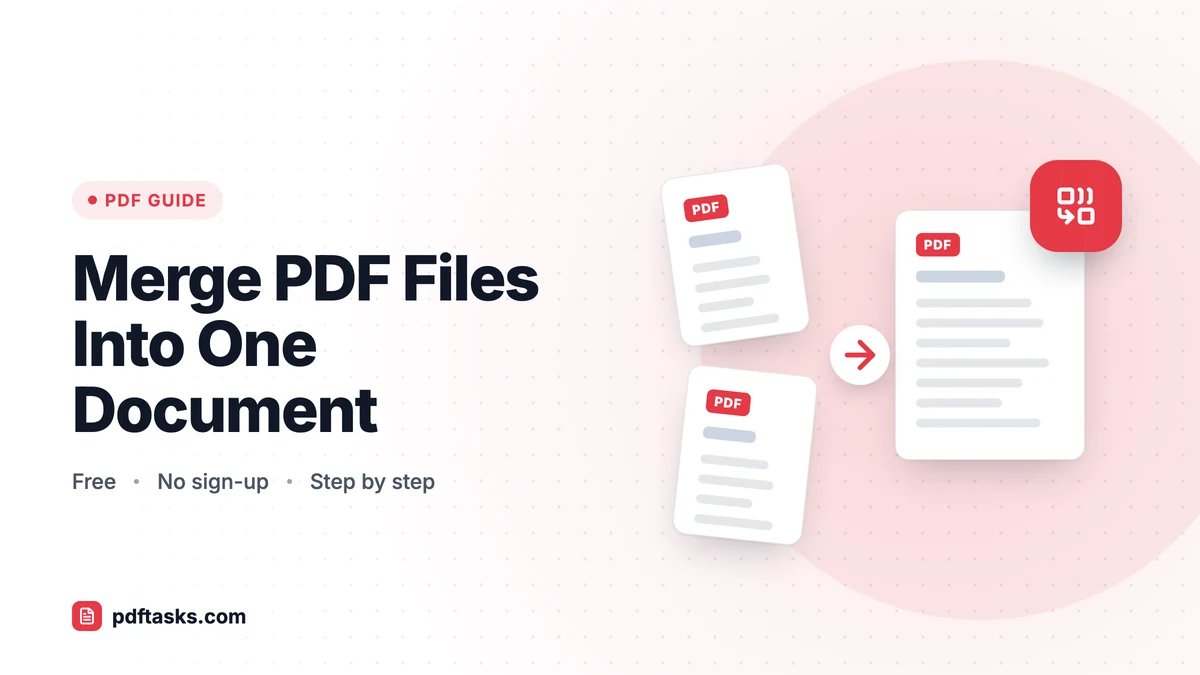
To merge PDF files, open a PDF merger, add the files you want to combine, drag them into the right order, and download a single PDF. With the PDFTools Merge PDF tool, the whole process runs in your browser, so your documents are never uploaded and every page keeps its original quality.
Below you'll find the step-by-step process, the built-in alternatives on Mac and Windows, and a few habits that make combined PDFs cleaner and easier to read.
Why combine PDFs into one file?
Sending one file instead of eight is simpler for everyone. Common reasons to merge PDF documents include:
- Contracts with annexes. A signed agreement plus its schedules, exhibits, and appendices belong together.
- Expense claims. A month of receipts, each saved as a separate PDF, becomes one attachment for accounting.
- Reports and theses. Chapters exported one at a time can be joined into a complete document.
- Applications. Job, visa, and school applications often accept only a single upload, so a cover letter, CV, and certificates need to become one PDF.
A merged file is also easier to archive, print in one go, and reference later.
How to merge PDF files with PDFTools
PDFTools is free, has no sign-up, and merges files locally on your device.
- Open the merger. Go to Merge PDF in Chrome, Safari, Firefox, Edge, or another modern browser.
- Add your files. Drag your PDFs onto the page or click to select them. You can add up to 50 files at once.
- Set the order. Drag the files into the sequence you want. The first file in the list becomes the first pages of the merged PDF.
- Merge. Click the merge button. The files are combined in your browser; nothing is sent to a server.
- Download and review. Save the combined PDF and flip through it to confirm the order and orientation are right.
Because merging copies pages into the new file as they are, text stays selectable and images keep their original resolution.
Merge PDF methods compared
There are several ways to combine PDF files. Here's how they stack up:
| Method | Cost | Platform | Files uploaded? | Notes |
|---|---|---|---|---|
| PDFTools Merge PDF | Free | Any modern browser | No, runs in your browser | Up to 50 files per merge |
| macOS Preview | Built in | Mac | No | Drag thumbnails between documents in the sidebar |
| Desktop PDF editor | Often paid | Windows, Mac | No | Extra features such as bookmarks and editing |
| Other online mergers | Varies | Browser | Often yes | Check the privacy policy and file limits |
Merging PDFs on a Mac with Preview
macOS Preview can combine PDFs without extra software. Open the first PDF, show the thumbnails sidebar (View > Thumbnails), then drag another PDF file from Finder into the sidebar where you want its pages to go. Save or export the result. It works well for a few files, but reordering many documents in a small sidebar can get fiddly.
Merging PDFs on Windows
Windows doesn't include a dedicated PDF merge feature. Microsoft Print to PDF prints one document at a time, so it can't combine separate files into one. Most Windows users rely on a browser-based tool or a desktop PDF editor instead. A browser tool like PDFTools has the advantage of needing no installation.
Why "in the browser" matters for privacy
Many online PDF tools upload your files to a server to process them. Merge PDF on PDFTools reads and combines the documents locally, using your own device. That makes it a good fit for contracts, bank statements, or medical paperwork that you'd rather not send anywhere.
Fixing pages after you merge
Merging combines whole files. Often the next step is tidying up the result.
- Wrong orientation? A sideways scan or a landscape page can be fixed with Organize PDF, where you can rotate, reorder, and delete pages in a thumbnail grid. Rotating doesn't reduce quality.
- Unwanted pages? Delete blank pages, duplicates, or cover sheets in Organize PDF, or use Remove Pages. Our guide to reordering and deleting PDF pages walks through it.
- Need numbering? After merging, the original page numbers rarely match. Adding fresh numbers makes the combined document easier to navigate; see how to add page numbers to a PDF.
- File too large to send? Merging many scans can produce a big file. Run it through Compress PDF afterward to shrink the images.
Can you merge only some pages from each PDF?
Merge PDF combines entire files. If you want only certain pages from each source, you have two options:
- Use Extract Pages on each source file to create smaller PDFs containing just the pages you need, then merge those.
- Merge everything first, then delete the pages you don't want in Organize PDF.
The first approach is cleaner when you need a handful of pages from long documents. The second is faster when you only need to drop a few pages.
Merging password-protected PDFs
An encrypted PDF can't be merged directly. If you know the password, remove it with Unlock PDF first, then merge the unlocked copy. If the merged document needs protection, add a password back at the end; our guide on how to password-protect a PDF explains how.
Tips for cleaner merged PDFs
- Name files in order before you start. Prefixing files with 01, 02, 03 makes it easy to see the intended sequence when you add them.
- Convert images first. If some of your documents are photos or scans saved as JPG, turn them into PDFs before merging. See how to convert JPG to PDF.
- Merge, then organize, then compress. That order avoids recompressing images more than once and keeps quality as high as possible.
- Check the finished file. Scroll through every page before sending. It takes a minute and catches upside-down scans and missing attachments.
- Watch memory on huge jobs. Because merging happens on your device, very large files are limited by your browser's available memory rather than a server quota. If a big job stalls, merge in two batches and then combine the results.
Common mistakes when combining PDF files
Getting the order wrong. It's easy to drop files in alphabetically and forget to rearrange them. Always double-check the list before merging.
Merging before removing passwords. Protected files need to be unlocked first, or the merge won't work.
Expecting bookmarks to be rebuilt. Merging focuses on page content. If you depend on a detailed bookmark outline, check the result in your PDF reader.
Sending sensitive files to unknown services. If a document is confidential, prefer a tool that processes files locally.
Frequently asked questions
How many PDF files can I merge at once?
You can add up to 50 files in a single merge with PDFTools. For very large files, the practical limit depends on your browser's available memory.
Are my files uploaded when I merge PDFs?
No. Merge PDF works entirely in your browser. The documents are read and combined on your device and are never sent to PDFTools servers.
Does merging PDFs reduce quality?
No. Pages are copied into the new file as they are, so text stays selectable and images keep their original resolution.
Can I merge PDFs on my phone?
Yes. The tool runs in mobile browsers on iPhone and Android, so you can combine PDFs saved on your phone without installing an app.
How do I merge only certain pages from different PDFs?
Extract the pages you need from each file with Extract Pages, then merge the smaller PDFs. Alternatively, merge everything and delete unwanted pages in Organize PDF.