How to Scan Documents to PDF with Your Phone (Free)
Learn how to scan documents to PDF with your phone camera for free. Capture pages, apply a document filter and save one clean PDF without uploading photos.
PDFTools 6 min read
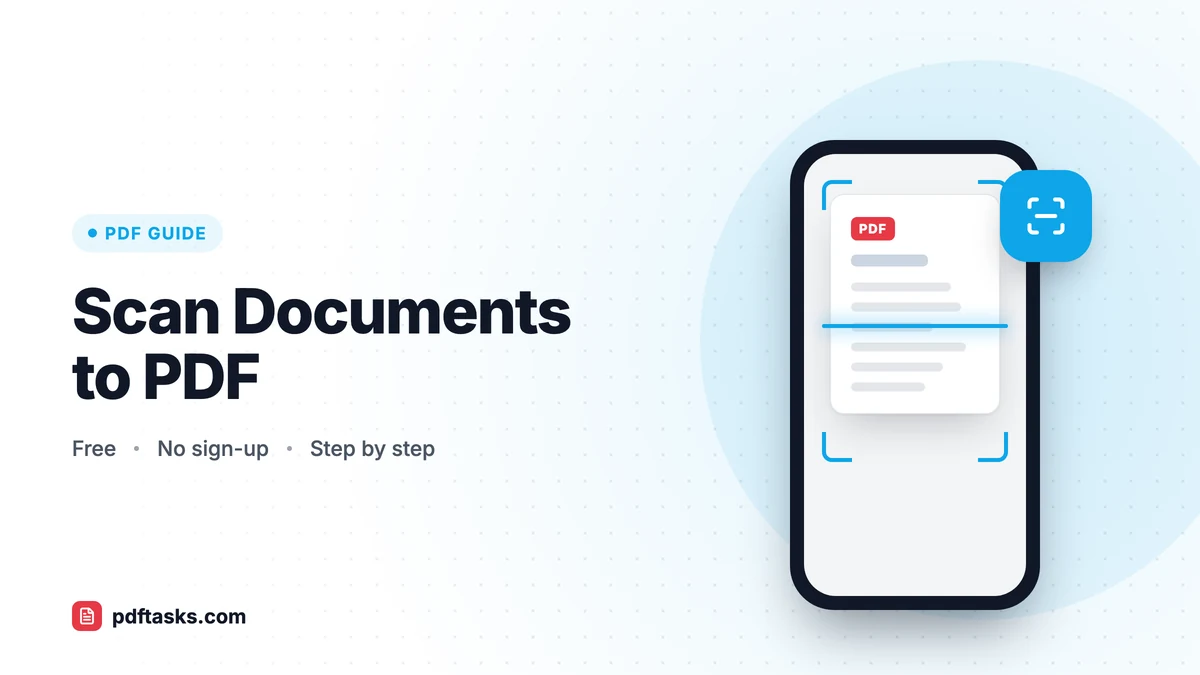
To scan a document to PDF with your phone, open a scan-to-PDF tool in your phone's browser, allow camera access, photograph each page, apply a Document or Black & white filter, and save the pages as one PDF. PDFTools Scan to PDF runs entirely in the browser, so there's no app to install and your photos never leave the device.
Below you'll find the step-by-step method, which filter to choose, how to get sharp, straight scans without a flatbed scanner, and how the built-in options on iPhone and Android compare.
Why scan with a phone instead of a scanner?
Most people don't have a scanner at home anymore, and the one at the office is never nearby when you need it. A phone camera is good enough for almost everyday paperwork:
- A signed form a landlord or employer needs back today
- Receipts for an expense claim
- A handwritten note or whiteboard sketch
- A few pages of a contract, letter or medical report
- School permission slips and certificates
The goal is a PDF that looks like a scan, not a photo of paper on a kitchen table. The right filter and a little technique get you most of the way there.
How to scan documents to PDF with PDFTools
Scan to PDF works in mobile browsers and on computers with a webcam.
- Open the tool and allow the camera. Your browser will ask for permission to use the camera. If you already took photos, you can pick them from your gallery instead.
- Capture each page. Lay the page flat, hold the phone directly above it, and fill the frame with the paper. Repeat for every page.
- Choose a filter per page. Pick Original, Document or Black & white for each page (see the table below).
- Rotate and reorder. Turn pages in 90-degree steps if needed and drag them into the correct order.
- Create and download the PDF. All pages are combined into a single PDF, created on your device.
Which filter should you use?
| Filter | What it does | Best for |
|---|---|---|
| Original | Keeps the photo as taken | Color forms, photos, documents where color matters |
| Document | Grayscale with boosted contrast so text stands out | Most printed text, letters, contracts, receipts |
| Black & white | Crisp, photocopy-like result | Plain text pages you'll print or fax-style copies |
Because each page can use its own filter, you can keep a colored ID card in Original while the text pages around it use Document.
How to get a clean scan without a scanner
Scan to PDF doesn't detect page edges or correct perspective automatically, so your technique matters. These habits make the biggest difference:
- Light it evenly. Daylight from a window or a bright room beats a single overhead lamp. Avoid the phone's flash, which creates a glare spot.
- Watch for shadows. Your hand and phone can cast a shadow across the page. Move so the light comes from the side.
- Shoot straight down. Hold the phone parallel to the paper. Tilting it turns the rectangle into a trapezoid.
- Fill the frame. Get close enough that the page takes up almost the whole picture, with very little background.
- Use a contrasting surface. A white page on a dark table is easier to frame than white on white.
- Flatten the paper. Unfold creases and hold curled pages down at the edges, out of shot.
- Hold still. Brace your elbows on the table for sharper text.
Built-in phone scanners compared
Your phone may already include a document scanner. Here's how the common options stack up.
iPhone: Notes and Files
The Notes app has a Scan Documents option, and the Files app can scan directly into a folder. Both detect page edges and correct perspective automatically, which is a real strength. They're limited to Apple devices, and scans in Notes may sync to iCloud depending on your settings.
Android: Google Drive
The Google Drive app includes a scan feature that also detects edges and saves the PDF to your Drive. It's convenient if you already use Drive, but your scan is stored in your Google account by design.
Dedicated scanner apps
Many app-store scanner apps offer OCR and cloud sync. Some are excellent; others push subscriptions or upload pages to their servers. Check the privacy policy before scanning sensitive documents.
| Method | Install needed | Auto edge detection | Where the file goes | Works on |
|---|---|---|---|---|
| PDFTools Scan to PDF | No | No | Stays on your device | Any modern browser with a camera |
| iPhone Notes / Files | Built in | Yes | Notes or Files (may sync to iCloud) | iPhone, iPad |
| Google Drive scan | App | Yes | Your Google Drive | Android |
| Third-party scanner apps | Yes | Usually | Varies, often the app's cloud | iOS, Android |
If automatic edge correction is essential, a built-in scanner is the better tool. If you want a quick, private scan on any device without installing anything, a browser tool is hard to beat.
After you scan: finishing touches
A scan often needs a little work before it's ready to send:
- Fix the order or remove a page. Open the PDF in Organize PDF to drag pages around or delete a blurry duplicate.
- Shrink it for email. Photo-based PDFs can be large. Compress PDF reduces the size; our guide to compressing without losing quality explains the levels.
- Sign it. If the form needs your signature, add it with Sign PDF. Our guide on signing a PDF online walks through it.
- Combine with other files. Need the scan inside a larger packet? Merge it with other PDFs.
Note that scanned pages are images, so the text isn't searchable or selectable until you run the PDF through OCR.
Common mistakes to avoid
Opening the link inside another app. Some apps, such as social or messaging apps, open links in a built-in browser that blocks the camera. If the camera won't start, open the page in Safari, Chrome or your regular browser.
Denying camera permission by accident. If you tapped "Don't allow," re-enable it in your browser's site settings.
Using Black & white on colored documents. It's great for plain text but strips out highlights, stamps and colored signatures. Switch those pages to Original or Document.
Scanning from an angle. Since the tool doesn't straighten pages, a tilted shot stays tilted. Retake it from directly above.
Retaking photos you already have. If the pages are already in your gallery, you can pick them in Scan to PDF, or use JPG to PDF for more page-size options.
Ready to try it? Scan your documents to PDF straight from your phone's browser.
Frequently asked questions
How do I scan a document to PDF on my phone for free?
Open PDFTools Scan to PDF in your phone's browser, allow camera access, capture each page, choose a filter, and download the PDF. It's free and needs no app or sign-up.
Why doesn't the camera start?
Your browser needs permission to use the camera. Check the permission prompt or site settings, and if you opened the link inside another app, open it in your regular browser instead.
Will the tool straighten crooked pages?
No. It doesn't detect edges or correct perspective, so hold the camera directly above the page and fill the frame. You can rotate pages in 90-degree steps.
Which filter is best for scanning text?
Document works well for most printed text. Black & white gives the crispest result for plain text pages, while Original is best for color forms and photos.
Are my scanned photos uploaded?
No. Capturing, filtering and creating the PDF all happen in your browser, and the photos never leave your device.
Can I search the text in my scanned PDF?
Not straight away, because the pages are images. Run the PDF through an OCR tool to add a searchable text layer.