How to Split a PDF Into Separate Files (Free Guide)
Learn how to split a PDF by page ranges, every few pages, or into single pages, free in your browser, so you get exactly the files you need without uploading.
PDFTools 6 min read
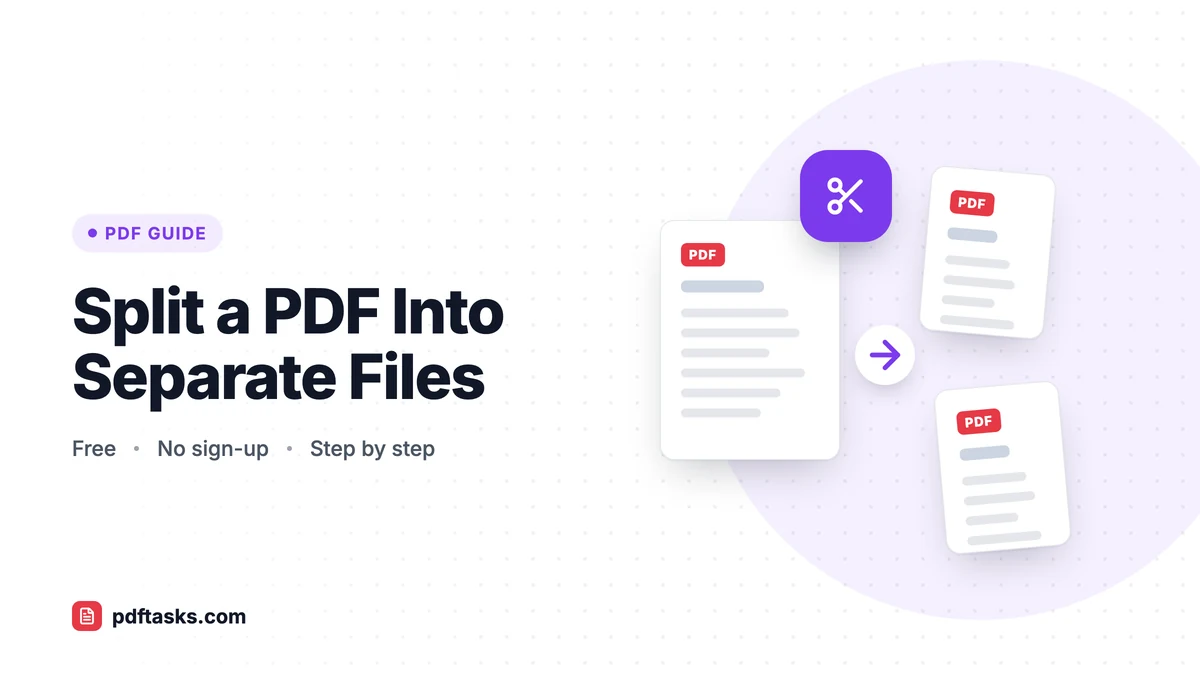
To split a PDF, open a PDF splitter, choose how to divide the document (custom page ranges like 1-3 and 4-10, a fixed number of pages per file, or every page as its own PDF), then download the results. With the PDFTools Split PDF tool, the work happens in your browser, so the file is never uploaded.
This guide covers each splitting method, when to use which, how to do it on Mac and Windows without extra software, and the small details that save you from re-doing the job.
When splitting a PDF makes sense
Scanners, accounting systems, and document portals love to produce one enormous PDF. Splitting turns that batch back into useful pieces:
- One file per invoice or receipt from a month-end scan.
- One PDF per chapter of a long report or ebook draft.
- A separate file for each student's test after scanning a whole class at once.
- Smaller uploads when a portal limits file size or page count.
- Sharing only the relevant section of a contract or manual instead of the whole thing.
Three ways to split a PDF
PDFTools offers three splitting modes. Pick the one that matches how your document is structured.
| Split mode | How it works | Best for | Example |
|---|---|---|---|
| Custom ranges | You type the exact page ranges for each output file | Documents with sections of different lengths | 1-3, 4-10, 11-end |
| Every N pages | The file is cut every fixed number of pages | Batches where every document has the same length | A scan of 2-page forms, split every 2 pages |
| Extract all pages | Every page becomes its own PDF | Single-page invoices, certificates, or slides | A 30-page file becomes 30 PDFs |
Custom page ranges
Use ranges when sections vary in length. Write each range as a start and end page, and use "end" for the last page so you don't need to count. This is the mode to use for splitting a report into chapters or separating a contract from its annexes.
Fixed intervals
If every document in the batch has the same number of pages, a fixed interval is much faster than typing ranges. A stack of two-page application forms scanned as one PDF can be split every 2 pages in one step.
One page per file
Choose extract all pages when every page is a standalone document. You'll get one PDF per page, bundled together in a ZIP.
How to split a PDF with PDFTools
The online PDF splitter is free, requires no sign-up, and runs locally on your device.
- Open Split PDF. Use any modern browser on a computer, tablet, or phone.
- Choose your file. Drag the PDF onto the page or click to select it. It's read by your browser, not uploaded.
- Pick a split mode. Select custom ranges, every N pages, or extract all pages.
- Enter your ranges or interval. For example, type 1-3, 4-10 and 11-end, or choose to split every 2 pages.
- Split and download. If the split produces more than one PDF, the files are packed into a single ZIP so you can download them in one click. Double-click the ZIP to open it on most computers.
Split PDF vs. Extract Pages: which do you need?
If you only need one section of a document, Extract Pages is a little faster. You pick the pages and get a single PDF back instead of a ZIP.
| You want to... | Use |
|---|---|
| Break a file into several separate PDFs | Split PDF |
| Pull out one section as a single PDF | Extract Pages |
| Delete a few pages and keep the rest | Remove Pages |
| Rearrange pages within one document | Organize PDF |
For deleting and reordering, our guide on how to reorder and delete PDF pages goes into more detail.
Splitting a PDF without an online tool
On a Mac with Preview
Preview can't split by ranges automatically, but you can do it manually. Open the PDF, show thumbnails, select the pages you want, and drag them to the desktop to create a new PDF containing just those pages. Repeat for each section. It works for a few splits; for dozens, it gets tedious.
On Windows with Microsoft Print to PDF
Open the PDF in your browser or PDF reader, choose Print, select Microsoft Print to PDF as the printer, and enter a page range such as 4-10. Save the output as a new file. Repeat for each range. Be aware that printing to PDF re-creates the document, so links and other interactive elements may not survive.
Desktop PDF editors
Most full PDF editors include a split feature with options similar to the ones above. They're convenient if you already own one, but a browser tool does the same job for free.
Privacy: why local splitting matters
Big batches of scanned documents often include sensitive information: invoices, tests, HR forms, bank statements. Split PDF runs in your browser using your own device's processing power, so the document never leaves your computer or phone. There's also no fixed page limit, because there's no server quota involved. The practical ceiling for very large files is your browser's available memory.
Tips for a clean split
- Check page numbers first. The page number printed on a document isn't always the PDF's page index. A cover page or table of contents can shift everything. Use the page thumbnails to confirm where each section starts.
- Use "end" for the final range. It prevents off-by-one errors when the total page count changes.
- Rotate and tidy before splitting. If some scanned pages are sideways or blank, fix them first so every output file is clean. Organize PDF handles rotation and deletion in one pass.
- Name output files right away. After unzipping, rename files to something meaningful (for example, "Invoice-2026-03-Acme.pdf") before you lose track of which is which.
- Need it smaller instead? If you're splitting only to get under an upload limit, try to compress the PDF first. Our guide on compressing a PDF without losing quality explains the levels.
Common mistakes to avoid
Overlapping ranges. Typing 1-5 and 5-10 puts page 5 in both files. Double-check boundaries.
Expecting bookmarks to carry over. Page content is preserved, but document-level items such as the bookmark outline may not carry over to the new files, since they often point to pages that are no longer in the same document.
Splitting when you meant to extract. If you just want pages 12-15 as one file, Extract Pages saves you from unzipping a folder of files you don't need.
Forgetting to merge back later. If you split a file to edit one part, you can recombine everything with Merge PDF when you're done.
Frequently asked questions
How do I split a PDF into individual pages?
Choose the extract all pages option in Split PDF. Every page becomes its own PDF, and all of them are delivered together in one ZIP file.
Is there a page limit for splitting a PDF?
There's no fixed page limit, because the work happens on your device. Very large files are limited only by your browser's available memory.
Does splitting a PDF upload my file?
No. Split PDF runs locally in your browser, and your document never leaves your device.
Why did I get a ZIP file?
When a split produces more than one PDF, the files are packed into a ZIP so you can download them in one click. Most operating systems open ZIP files with a double-click.
Will bookmarks and links survive the split?
Page content is preserved, but the bookmark outline may not carry over, because bookmarks often point to pages that are no longer in the same document.
Can I split a PDF on my phone?
Yes. Split PDF works in mobile browsers, so you can split a file stored on your phone without installing an app.