How to Reorder and Delete PDF Pages in Your Browser
Learn how to reorder and delete PDF pages for free. Drag thumbnails, rotate sideways scans, add blank pages and save a clean copy without uploading files.
PDFTools 5 min read
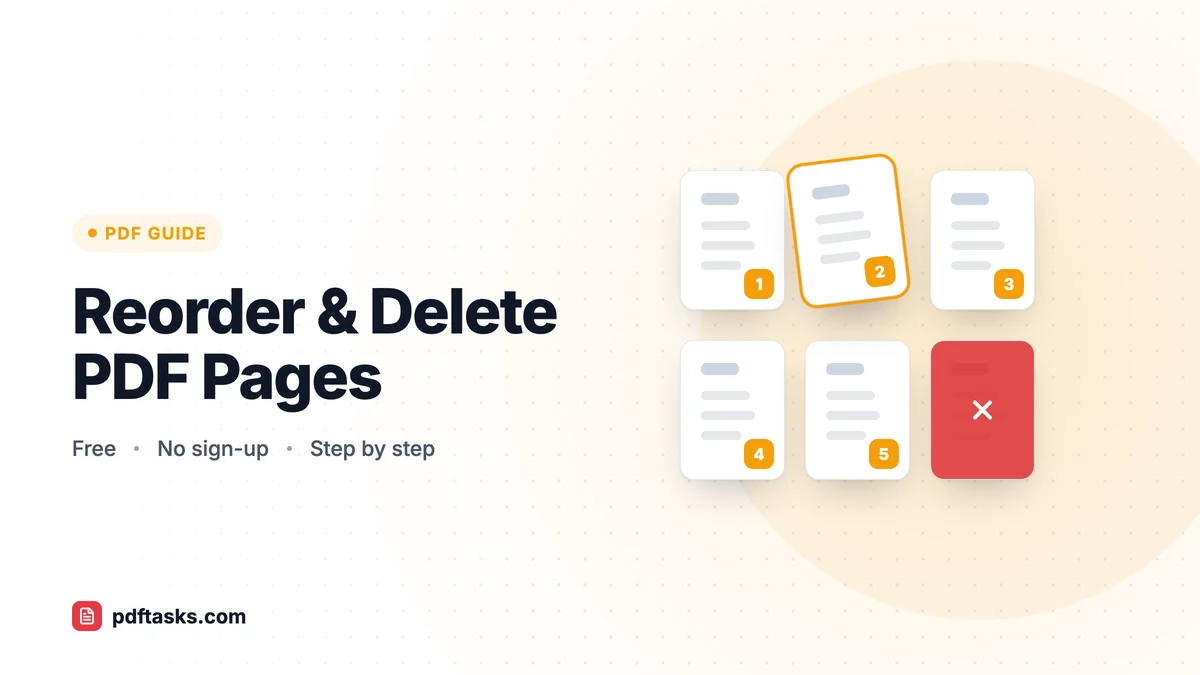
To reorder and delete PDF pages, open the PDF in an organizer that shows page thumbnails, drag pages into the correct order, delete the ones you don't need, then save a new copy. PDFTools' Organize PDF does this in your browser: the file isn't uploaded, and your original stays unchanged.
Read on for the step-by-step method, a quick guide to which page tool fits which job, and the mistakes that most often leave a PDF looking messy.
Why PDF pages end up out of order
Few PDFs arrive perfectly arranged. The usual culprits:
- Scanning a stack of paper. Pages get fed in the wrong order, upside down, or with blank backs from a double-sided scan.
- Merging several files. After you combine PDFs, the appendix might land before the introduction.
- Exports with extras. A report export can include empty pages, duplicate slides or a cover you don't want to send.
- Last-minute changes. A contract needs one page swapped or a notes page added before signing.
The fix is the same in each case: see every page at once, then move, rotate, add or delete pages until the document reads correctly.
How to reorder and delete pages with PDFTools
Organize PDF shows your document as a grid of page thumbnails.
- Open your PDF. Select or drag in the file. Every page appears as a thumbnail.
- Rotate sideways pages. Turn any page that came out upside down or sideways, so you can read the thumbnails while sorting.
- Drag pages into order. Move each page to its correct position by dragging its thumbnail.
- Delete or insert pages. Remove duplicates and blank pages, or insert a blank page where you need a separator or a page for handwritten notes.
- Save changes and download. Nothing is written until you click Save changes. You get a new PDF and the original file stays as it was.
That order of operations, rotate first, then sort, then delete, is the quickest way through a messy scan, because upright thumbnails are much easier to read.
Which page tool should you use?
PDFTools has several page tools that overlap a little. Here's when to pick each one.
| Task | Best tool | Why |
|---|---|---|
| Fix order, rotate, delete and insert in one pass | Organize PDF | Visual grid for all page edits at once |
| Delete a known list of pages from a long file | Remove Pages | Focused on just removing pages |
| Turn pages to the right orientation | Rotate PDF | Focused on fixing page orientation |
| Keep only certain pages as a new file | Extract Pages | Pulls selected pages into a fresh PDF |
| Break one file into several files | Split PDF | Splits by ranges or every page |
| Combine pages from different files | Merge PDF, then Organize | Organize works on one document at a time |
If you're unsure, start with Organize PDF. It covers most clean-up jobs in a single screen.
Working with pages from more than one PDF
Organize PDF edits a single document. To build a file from pages scattered across several PDFs, merge them first, then open the merged file in Organize to arrange and trim the pages. Our guide to splitting a PDF covers the opposite situation, when one big file should become several smaller ones.
When to insert a blank page
Inserting blank pages sounds odd, but it solves real problems:
- Double-sided printing. Adding a blank page makes a new chapter start on a right-hand page.
- Section separators. A blank page between sections makes a printed bundle easier to navigate.
- Room for notes. A blank page after a slide or a form gives space for handwritten comments.
Other ways to organize PDF pages
Mac: Preview
Preview's thumbnail sidebar lets you drag pages to reorder them, delete selected pages and rotate them. It's an excellent built-in option for Mac users. Just remember that Preview edits the open file, so duplicate it first if you want to keep the original.
Windows
Windows doesn't include a built-in tool for rearranging PDF pages. Most people use a desktop PDF editor or a browser-based tool.
Adobe Acrobat
Acrobat's page organizer offers similar thumbnail editing with extra features, but full page editing requires a paid plan.
Comparison
| Method | Reorder | Rotate | Delete | Insert blank page | Uploads your file? |
|---|---|---|---|---|---|
| PDFTools Organize PDF | Yes | Yes | Yes | Yes | No |
| macOS Preview | Yes | Yes | Yes | Yes | No |
| Adobe Acrobat (paid) | Yes | Yes | Yes | Yes | No |
| Many online editors | Yes | Usually | Yes | Varies | Often yes |
Tips and common mistakes
Organizing after numbering. Page numbers are stamped onto pages. Reorder and delete first, then add page numbers so they run in sequence.
Deleting the wrong page. Thumbnails are small. Zoom in or check the page content before deleting, especially with look-alike pages such as forms or invoices.
Worrying that rotation lowers quality. It doesn't. Rotation changes how the page is displayed; the content isn't re-rendered.
Assuming changes save automatically. They don't. Click Save changes and download the new file, or your edits are lost when you close the tab.
Sending sensitive files to unknown servers. Organize PDF runs in your browser, so contracts and personal records stay on your device.
A quick clean-up routine for scanned documents
- Scan or photograph the pages. If you don't have a scanner, see how to scan documents to PDF.
- Open the file and reorder, rotate and delete pages in one pass.
- Number the pages if the document will be printed or referenced.
- Compress it if you need to email it.
Four steps, and a pile of mixed-up paper becomes a document you'd be happy to send.
Frequently asked questions
How do I rearrange pages in a PDF for free?
Open the PDF in Organize PDF, drag the page thumbnails into the order you want, and click Save changes to download the new file.
How do I delete a single page from a PDF?
In Organize PDF, delete the page thumbnail and save. If you already know the page numbers to remove, Remove Pages is a focused alternative.
Does organizing a PDF change my original file?
No. You download a new PDF when you click Save changes, and your original file stays unchanged.
Can I combine pages from different PDFs?
Not in Organize directly, because it works on one document. Merge the files with Merge PDF first, then arrange the pages in Organize.
Does rotating a page reduce quality?
No. Rotation changes how the page is displayed and doesn't re-render the content.
Is my PDF uploaded?
No. Organize PDF runs entirely in your browser and the file stays on your device.