How to Add Page Numbers to a PDF (Free and Fast)
Learn how to add page numbers to a PDF for free. Pick the position, format and starting number, and number your document in seconds without uploading it.
PDFTools 6 min read
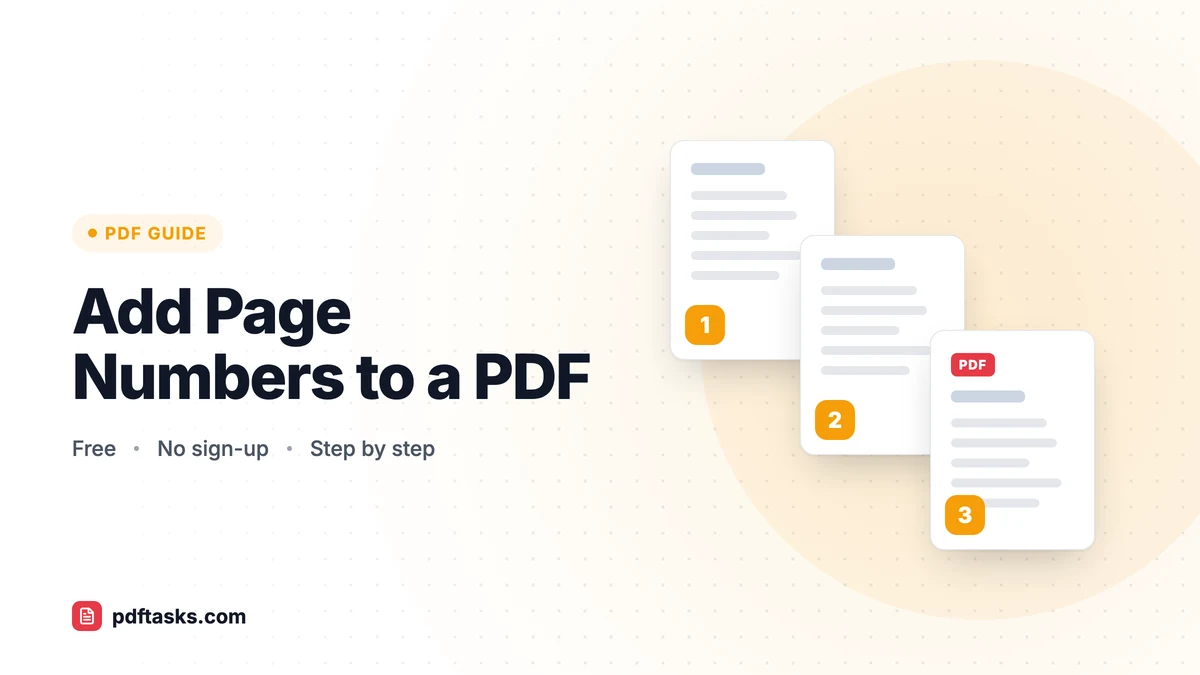
To add page numbers to a PDF, open an add-page-numbers tool, select your file, choose where the numbers go (top or bottom; left, center or right), pick a format such as "Page 1 of N", set the starting number, and download the numbered PDF. With PDFTools this all happens in your browser, so the document is never uploaded.
Below is the full walkthrough, plus advice on choosing a format, numbering documents that have a cover page, and how this compares with Word, Acrobat and Mac Preview.
Why page numbers still matter
Page numbers look like a small detail until they're missing. They let a colleague say "see page 14" in a meeting, help anyone put dropped printouts back in order, and are often a formal requirement for theses, legal bundles, grant applications and tender submissions.
They matter most after you merge several PDFs into one. Each source file may carry its own numbering, or none at all, so the combined document ends up with page 3 followed by page 1. Adding a fresh, continuous set of numbers fixes that in one pass.
How to add page numbers with PDFTools
The add page numbers tool is free and needs no account.
- Open your PDF. Select or drag the file into the tool. If you have several files, combine them first with Merge PDF so numbering runs continuously.
- Choose the position. Place numbers at the top or bottom of the page, aligned left, center or right.
- Pick a format. Choose a plain number ("1"), a label ("Page 1"), or a number with the total ("Page 1 of N").
- Set font size and starting number. Keep the size modest so numbers sit in the margin, and change the start number if the document continues from earlier pages.
- Check the preview and download. Make sure the numbers don't overlap any content, then save your numbered PDF.
Which format should you use?
| Format | Example | Best for |
|---|---|---|
| 1 | 7 | Books, reports and documents with a clean, minimal look |
| Page 1 | Page 7 | Internal documents, handouts, meeting packs |
| Page 1 of N | Page 7 of 32 | Contracts, legal bundles, forms where missing pages must be obvious |
"Page 1 of N" is especially useful for anything signed or submitted, because the reader can immediately tell whether a page is missing.
Where should the numbers go?
Bottom center is the most common convention and rarely clashes with headings. Bottom right works well for documents read on screen or printed single-sided. Top right is common in academic and legal formats, but check whether your document already has a header there. Whatever you choose, preview a few pages, including any full-bleed images or tables that run close to the edge.
Numbering documents with a cover page
The starting number is handy when your PDF doesn't begin at page 1. If the file is chapter two and chapter one ended on page 18, set the start to 19.
A cover page is a slightly different case: you usually want no number on the cover and "1" on the first content page. The tool numbers every page in the file, so the cleanest approach is:
- Use Split PDF or Extract Pages to separate the cover from the rest.
- Add page numbers to the main body.
- Merge the cover back on top with Merge PDF.
It's a couple of extra clicks, and all three tools run in your browser.
Other ways to number PDF pages
Microsoft Word or Google Docs
If you still have the original document, inserting page numbers in Word or Google Docs before exporting to PDF gives you the most control, including different first pages and section-based numbering. The catch is that you need the source file, which you often don't have for scans or PDFs you received.
Adobe Acrobat Pro
Acrobat's header and footer feature can add page numbers with many layout options. It's capable but part of a paid subscription.
macOS Preview
Preview is great for reordering and annotating, but it has no built-in feature to stamp page numbers on every page. You'd have to add text boxes one page at a time.
Comparison
| Method | Needs source file | Cost | Works on scans | Uploads your PDF? |
|---|---|---|---|---|
| PDFTools Add Page Numbers | No | Free | Yes | No |
| Word / Google Docs | Yes | Free or included | No | Docs: stored in your Google Drive |
| Adobe Acrobat Pro | No | Paid subscription | Yes | No |
| macOS Preview | No | Free | Manual only | No |
Tips and common mistakes
Numbering before you finish editing. If you'll still reorder, insert or delete pages, do that first in Organize PDF. Numbers are stamped onto the page, so moving pages afterwards leaves them out of sequence.
Adding a second set of numbers. If your PDF already has page numbers, the new ones won't replace them; existing numbers are part of the page content. Pick a different position or skip renumbering.
Using a huge font size. Large numbers can collide with footers, footnotes or images. Start small and check the preview.
Forgetting the final checks. Once numbering is done, you may want to compress the PDF for email or password-protect it if it's confidential. Do these last, after numbering.
Worrying about privacy. Page numbers are added locally in your browser, so confidential bundles never leave your device.
Putting it together: a typical workflow
Say you're assembling a tender submission from a cover letter, a company profile, three certificates and a pricing sheet:
- Merge all the files in the right order.
- Open the result in Organize PDF to rotate any sideways certificates and remove blank pages.
- Number the pages using "Page 1 of N" at the bottom right.
- Compress if the portal has a size limit.
The result is a single, tidy file in which every page can be referenced precisely. For more on rearranging pages, see how to reorder and delete PDF pages.
Frequently asked questions
How do I add page numbers to a PDF for free?
Open the PDFTools Add Page Numbers tool, select your PDF, choose the position, format and start number, and download the result. It's free and requires no sign-up.
Can I start page numbering at a number other than 1?
Yes. Set the start number to any value, for example 19 if the document continues from an earlier file that ended on page 18.
How do I skip numbering on the cover page?
Separate the cover with Split PDF, number the remaining pages, and merge the cover back on top with Merge PDF.
Will adding page numbers replace existing numbers?
No. Existing numbers are part of the page content and stay where they are. Choose a different position or avoid adding a second set.
Is my PDF uploaded when I add page numbers?
No. The numbers are added in your browser and the file stays on your device.
What does "Page 1 of N" mean?
It shows each page number along with the total page count, such as "Page 3 of 12", so readers can see if any page is missing.