How to Add a Watermark to a PDF (Text or Logo)
Learn how to add a watermark to a PDF for free. Stamp DRAFT, CONFIDENTIAL or your logo, set opacity, rotation and position, and keep the file on your device.
PDFTools 5 min read
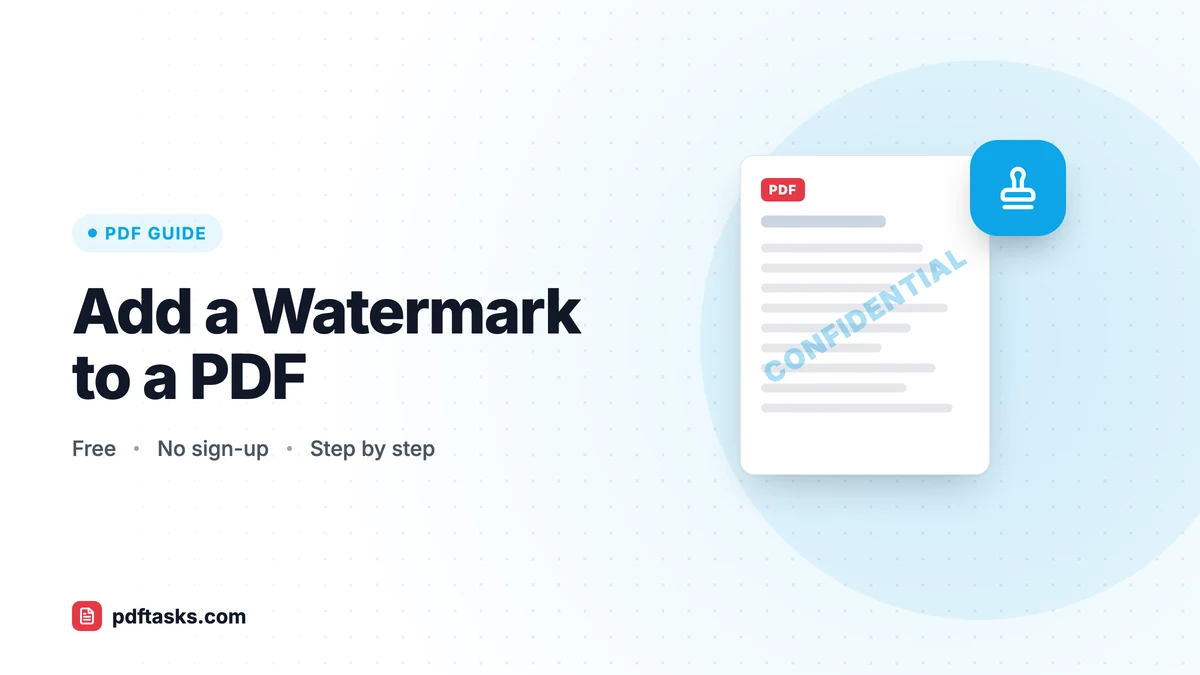
To add a watermark to a PDF, open a PDF watermark tool, choose a text watermark (like DRAFT or CONFIDENTIAL) or upload a logo image, adjust the opacity, rotation and position, then download the watermarked file. PDFTools adds the watermark in your browser, so your PDF is never uploaded.
Below you'll find the exact steps, recommended settings for common situations, what a watermark can and can't protect against, and how other methods compare.
What a PDF watermark is for
A watermark is a label printed across or onto the page that tells readers what kind of document they're holding. Typical uses:
- DRAFT on a report or contract that shouldn't be quoted or signed yet.
- CONFIDENTIAL or INTERNAL on documents that shouldn't be forwarded.
- SAMPLE or PREVIEW on a paid report, template or e-book excerpt.
- A logo on proofs, portfolios or quotes, so the work is clearly attributed to your studio or business.
- COPY on duplicates of certificates or records, so they aren't mistaken for originals.
How to add a watermark with PDFTools
The PDF watermark tool is free, needs no sign-up, and works on desktop and mobile.
- Open your PDF. Select or drag the file into the tool.
- Choose text or image. Type your watermark text, or upload a PNG or JPG image such as your logo.
- Adjust opacity. Set how transparent the watermark is. Around 20–40% is usually visible without hiding the text underneath.
- Set rotation and position. A diagonal watermark across the center is the classic look; a smaller mark in a corner is more subtle.
- Preview and download. Check a few pages to make sure the content is still readable, then save the watermarked PDF.
Recommended settings by use case
| Use case | Watermark type | Opacity | Rotation and position |
|---|---|---|---|
| Draft for review | Text: DRAFT | 25–35% | Diagonal, centered |
| Confidential document | Text: CONFIDENTIAL | 20–30% | Diagonal, centered |
| Paid sample or preview | Text: SAMPLE | 30–40% | Diagonal, centered |
| Branded proof or portfolio | Logo image (PNG) | 15–30% | Centered or corner |
| Copy of a certificate | Text: COPY | 20–30% | Diagonal or top |
Treat these as starting points. Pages with dense text or dark images may need a lower opacity, while pages with lots of white space can take a stronger mark.
Text vs. logo watermarks
Text watermarks are quick and unambiguous. Everyone understands DRAFT. Keep the wording short: one or two words reads far better at a large size than a full sentence.
Image watermarks are better for branding. A PNG with a transparent background usually looks best, because a JPG logo brings its white or colored rectangle along with it. Use a reasonably high-resolution file so the logo stays crisp when it's scaled across the page.
What a watermark can and can't do
It's worth being clear about this. A watermark is a label and a deterrent, not a lock.
It works well to signal status, discourage casual forwarding, and make screenshots or printouts obviously traceable to a draft or sample. But someone with PDF editing software can often remove or cover a watermark, and a watermark does nothing to stop someone opening the file.
For real protection, combine it with other measures:
- Control access. Add a password with Protect PDF, which encrypts the document with AES-256. See our guide on how to password-protect a PDF.
- Make it harder to strip. Flattening the document turns the watermark into part of the page content, so it can't simply be selected and deleted.
- Share only what's needed. For a preview, extract a few pages and watermark those instead of sending the whole document.
Other ways to watermark a PDF
Microsoft Word
Word has a built-in watermark feature (on the Design tab) that adds text like DRAFT or CONFIDENTIAL. It's a good option when you have the original .docx, because the watermark is applied before you export to PDF. It doesn't help with PDFs you received or scanned.
Adobe Acrobat Pro
Acrobat Pro can add, update and remove watermarks with detailed controls. It's powerful but requires a paid subscription.
macOS Preview
Preview lets you add text boxes and shapes, but it has no dedicated watermark feature, so you'd have to place and style the mark page by page.
Comparison
| Method | Works on existing PDFs | Text | Image/logo | Cost | Uploads your file? |
|---|---|---|---|---|---|
| PDFTools Watermark PDF | Yes | Yes | Yes | Free | No |
| Microsoft Word | No (source file only) | Yes | Yes | Included with Office | No |
| Adobe Acrobat Pro | Yes | Yes | Yes | Paid subscription | No |
| macOS Preview | Manual only | Manual | Manual | Free | No |
Tips and common mistakes
Making the watermark too strong. A solid black CONFIDENTIAL across the page makes the document hard to read and print. Lower the opacity until the text underneath is comfortable to read.
Using a JPG logo with a background. Export your logo as a transparent PNG first.
Watermarking before the document is final. Finish edits, page order and page numbers first, then watermark as one of the last steps, right before protecting or sending the file.
Relying on a watermark for security. It labels; it doesn't lock. Use a password for anything truly sensitive.
Uploading confidential files to unknown sites. Documents marked CONFIDENTIAL are exactly the ones you don't want on a stranger's server. PDFTools adds watermarks in your browser, so the file never leaves your device.
A simple workflow for sharing a draft
- Assemble the draft and fix the page order with Organize PDF (see how to reorder and delete PDF pages).
- Add a DRAFT watermark at around 30% opacity, diagonally across each page.
- Protect the file with a password if it contains sensitive information.
- Send the password separately from the file, for example by text message.
Frequently asked questions
How do I add a watermark to a PDF for free?
Open the PDFTools Watermark PDF tool, select your file, enter text or upload an image, adjust opacity, rotation and position, and download the result. It's free with no sign-up.
Can I use my logo as a PDF watermark?
Yes. Upload a PNG or JPG image. A PNG with a transparent background usually looks best.
What opacity should a watermark have?
Around 20–40% is usually visible without hiding the text underneath. Preview a few pages and adjust to suit your document.
Can someone remove a watermark from a PDF?
A determined person with editing software often can. Treat a watermark as a label and deterrent, and use Protect PDF when you need to control who can open the file.
Is my PDF uploaded when I add a watermark?
No. The watermark is added in your browser and the PDF never leaves your device.